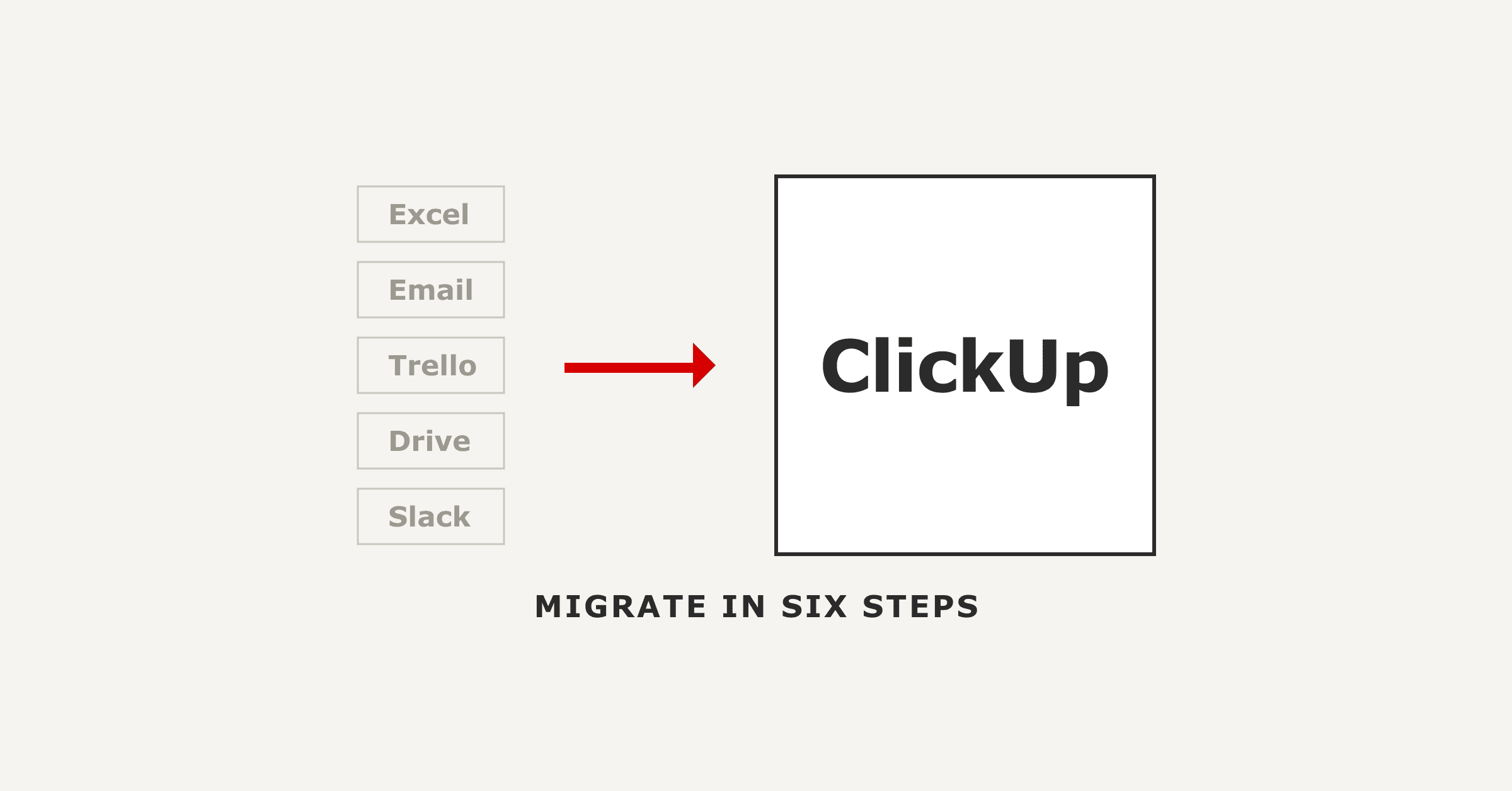
ClickUp Migration: 6 Steps and What Importers Leave Behind
Migrating to ClickUp has two halves. ClickUp's native importers move your tasks, comments and attachments across from As...
ReadUse ClickUp for continuing medical education: track CME credits as custom fields in one space and never miss a renewal deadline.
 L5 Team
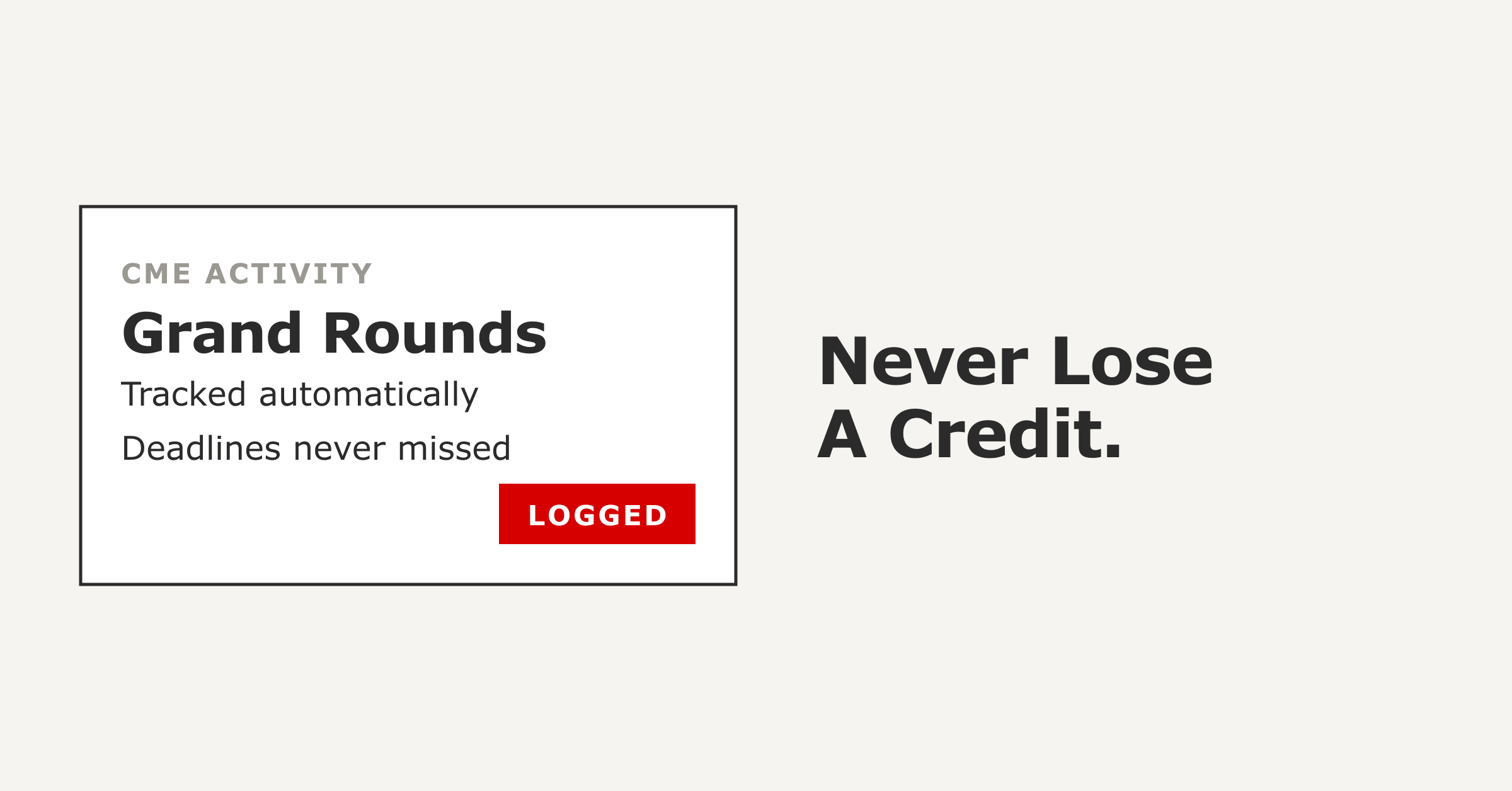
ClickUp can be a valuable tool for managing and tracking Continuing Medical Education (CME) activities.
Here is how you can use ClickUp for CME:
Create a dedicated Space in ClickUp for CME. This workspace will be a centralized hub for organizing and managing CME-related tasks and activities.
Create projects within the CME workspace to categorize different aspects of CME, such as conferences, online courses, journal clubs, or certifications. Each project can represent a specific CME activity or type.
Create tasks for each CME activity or educational module. Include details such as the activity’s title, description, and objectives. You can also attach relevant files, such as course materials, presentation slides, or reference documents.
Assign tasks to individual healthcare professionals participating in CME activities. Set due dates to ensure completion within the specified time frame. ClickUp’s reminder feature can help participants stay on track and meet deadlines.
Utilize custom fields or tags to track CME credits associated with each task. For example, you can create a custom field to enter the number of CME credits awarded for a specific activity. This allows for easy tracking and reporting of CME credits earned by participants.
Regularly update task statuses to reflect the progress of each CME activity. ClickUp provides visual indicators, such as task progress bars, to give you an overview of the completion status of CME tasks. These features help you monitor participants’ progress and identify any activities that are behind schedule.
Utilize ClickUp’s communication features to facilitate collaboration among participants and CME organizers. Participants can leave comments, ask questions, or engage in discussions within the task. ClickUp’s @mention feature allows for targeted communication.
ClickUp allows attaching files and documents to tasks. This feature stores important CME-related documents, such as completion certificates, participation records, or evaluation forms. This centralized storage ensures easy access to essential CME documents when needed.
You can visualize and analyze data related to completed CME activities, credits earned, or participant engagement. You can set up views, assess your CME program’s effectiveness, and identify areas for improvement.
ClickUp integrates with calendar applications, allowing you to sync CME-related tasks and due dates with your preferred calendar tool. This ensures that participants have visibility into upcoming CME activities and can plan their schedules accordingly.
By using ClickUp for Continuing Medical Education, you can streamline the management of CME activities, track participant progress, and ensure compliance with professional development requirements. ClickUp’s flexibility and collaboration features provide a robust platform for organizing, tracking, and enhancing the CME experience for healthcare professionals.


The full article with its figures, tables and sources, set for reading offline, printing, and sharing.
On its way to your inbox You can also download it right now.
Download the PDF Last updatedKeep reading
Migrating to ClickUp has two halves. ClickUp's native importers move your tasks, comments and attachments across from As...
Read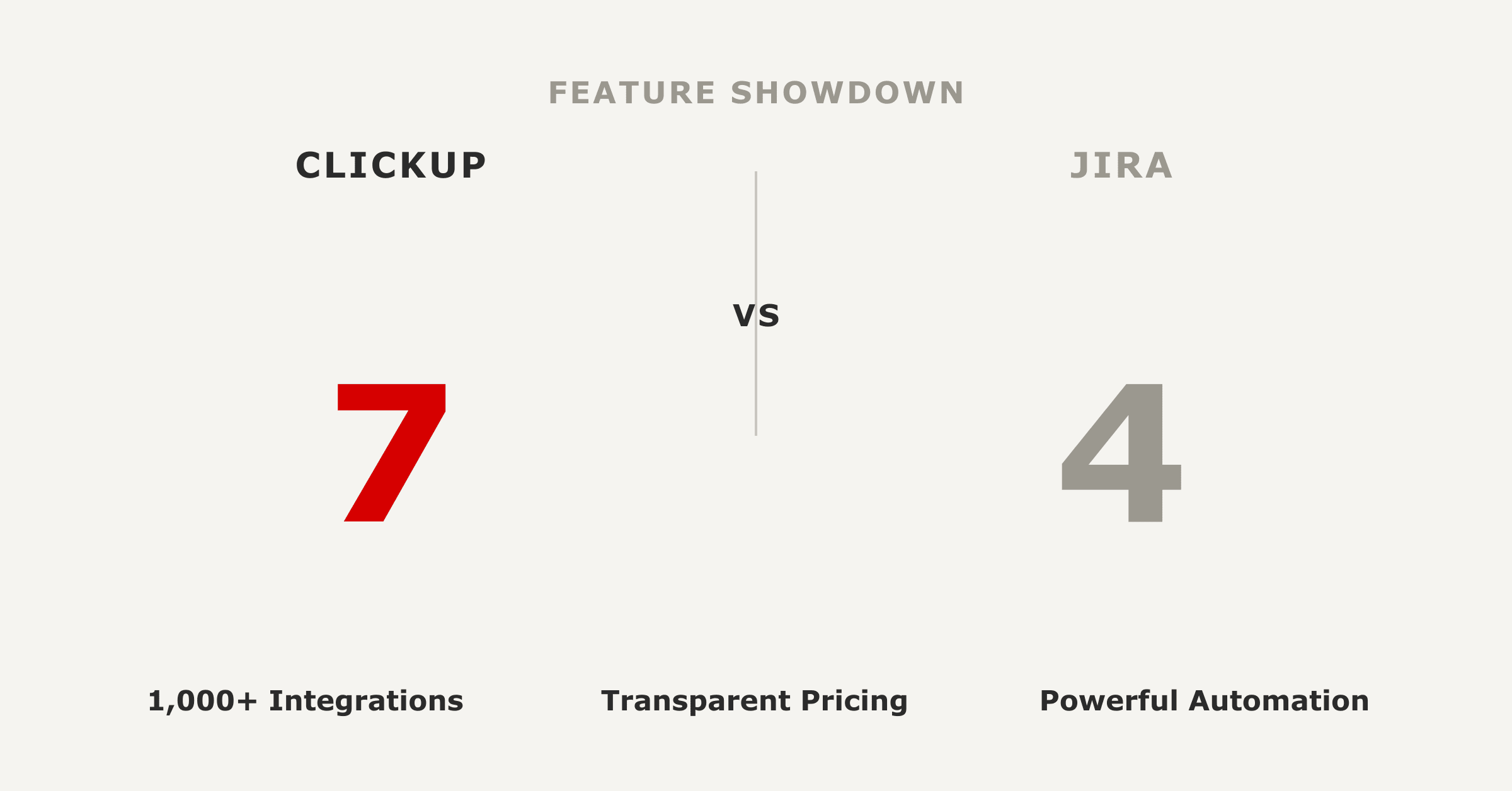
Last verified July 2026. Should you choose Jira or ClickUp? Choose Jira if your team ships software and works in sprints...
Read
The Opportunity An engineering team struggled with inefficient support ticket management using Jira and Confluence. The ...
ReadField notes on AI operations and service management, direct to your inbox. New insights, the week we publish them.
No spam. Unsubscribe any time.