ClickUp's Workload view shows how many hours each person has scheduled each day against their capacity, coloured green, yellow or red. How to read it and move work so nobody on the team is overbooked.
-
/
3 min watch
Chapters
Dates do not show capacity
A product launch list shows each task's assignee, start date, due date and time estimate. It does not show whether anyone is booked for more hours than they have in a week.
The Workload view
Workload lists each assignee down the left and two weeks of dates across the top. Each cell holds the hours scheduled for that person on that day, taken from the time estimates on their tasks. Red means over capacity, yellow means at or near capacity, and green means there is room for more work.
Rebalancing the work
Opening an assignee's row shows the tasks behind each day, and unassigned work sits in its own row ready to hand to someone with room. Dragging an overbooked task to a lighter stretch of the calendar spreads the hours, and the cell turns green once the load fits.
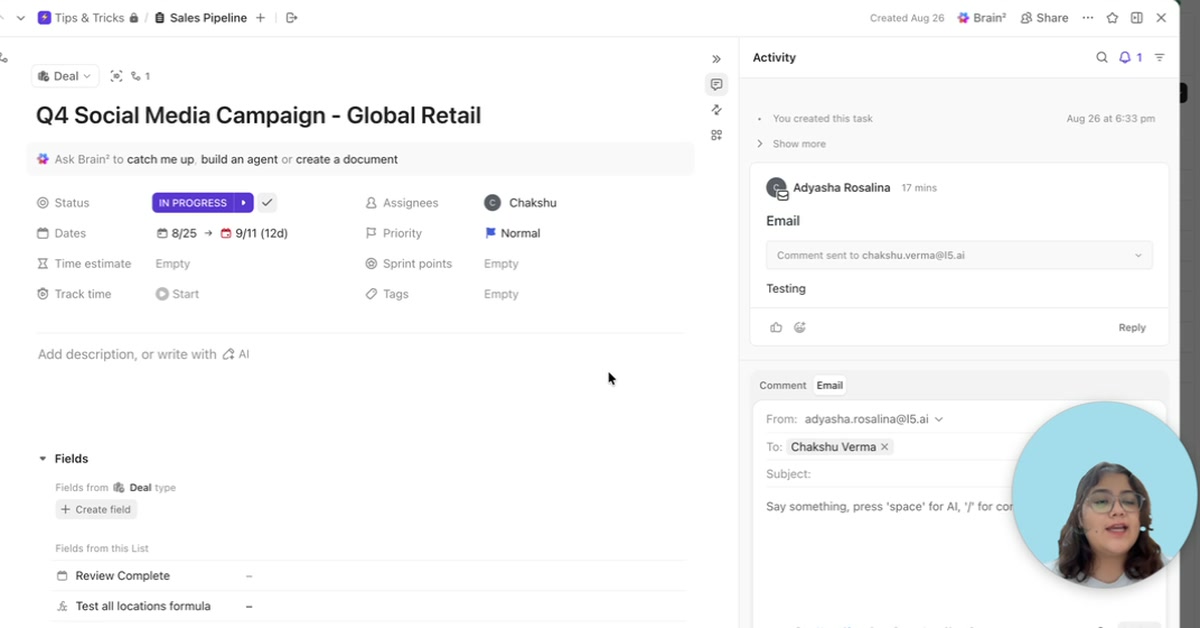
ClickUp can send email from inside a task, so the client conversation stays with the work it belongs to. How to connect an email account, send from a task and keep client replies threaded on the same task.
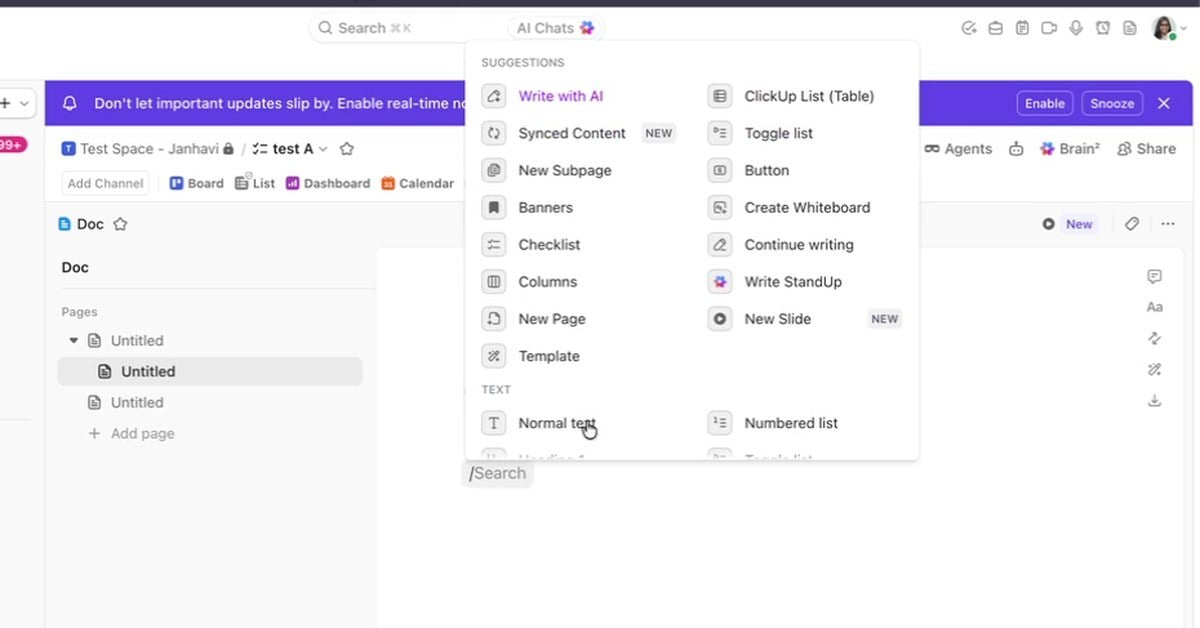
ClickUp Docs and wikis keep documentation next to the work. How to build a doc with pages and slash commands, comment in it, mark it a wiki and set access.
3 min/Oct 2026
Watch
New resources, as soon as they land.
Whitepapers, datasheets, recorded sessions, and field notes on operating AI. Straight to your inbox, the week we publish.