How Do You Apply a Task Template Automatically in ClickUp?
Video
Two automations on a ClickUp list read a project's Service Type and apply the matching task template, so a new project arrives with its action items already on it.
Chapters
Letting a template do the setup
A project kicks off, someone opens a fresh task, and then types the same six action items they typed on the last one. It holds up for a project or two. Then a step gets missed, nobody notices until the work is already moving, and the cleanup costs more than the setup would have.
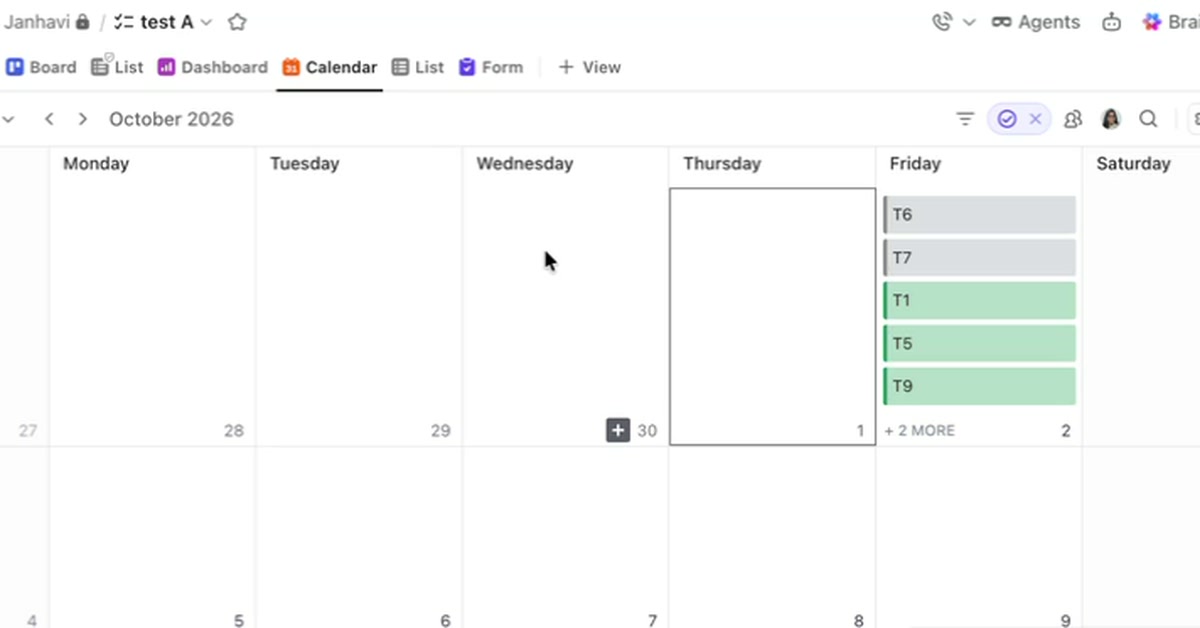
This walkthrough builds that setup into the list itself. Two automations sit on a ClickUp project list, each watching for a new task and reading its Service Type. An Implementation project gets the implementation template applied, a Migration project gets the migration one, and the subtasks land on the task the moment it is created. The walkthrough creates one of each on camera, so you see the action items appear without anyone adding them.
The trigger is task creation and the action is Apply template, which is what makes this different from copying a template by hand. The person starting the project only picks the service type. ClickUp fills in the rest of the work.