How Do You Automate Deadline Reminders in ClickUp?
Video
Date and time triggers in ClickUp keep a team informed without anyone chasing status. This walkthrough builds four of them on a live task list, from a start date comment through to an overdue escalation.
-
/
2 min watch
Chapters
Date and time automations in ClickUp
Deadline based work tends to fail quietly. A task sits untouched past its start date, a due date moves without anyone hearing about it, and work goes overdue before a manager notices. Each of those is a date that passed with nobody watching it.
This walkthrough opens the automations builder on a ClickUp list where start dates, due dates, assignees and priorities are already set, then builds four rules on top of it. The first posts a comment to the assignee when a start date arrives. The second fires two days before the due date, giving a heads up and raising the task to Urgent priority. The third uses the Due date changed trigger to tell the assignee whenever a deadline moves, so a reschedule is never silent. The fourth runs a day after the due date and comments to both the assignee and the manager when work is still open.
Together they cover the life of a deadline, from the day work should start to the day it is late. ClickUp does the telling, so nobody has to run a status check to find out.
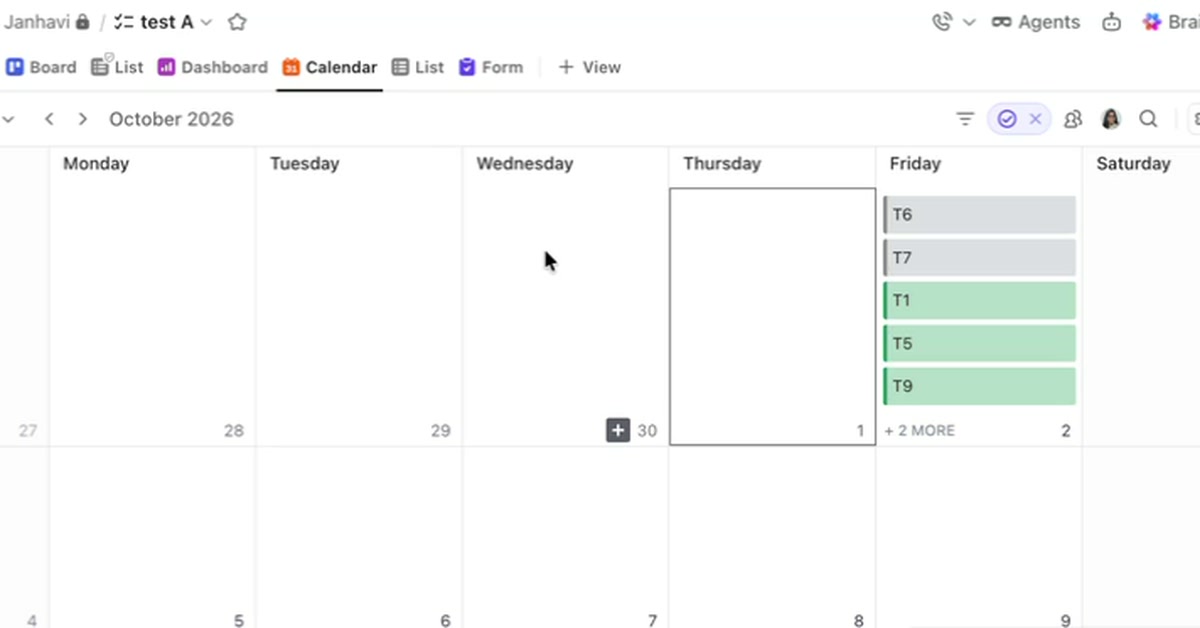
A list shows what needs doing but not when it happens. How ClickUp's Calendar view places tasks on a calendar by their dates, what a task needs to appear there, and how filters and color coding shape what the calendar shows.
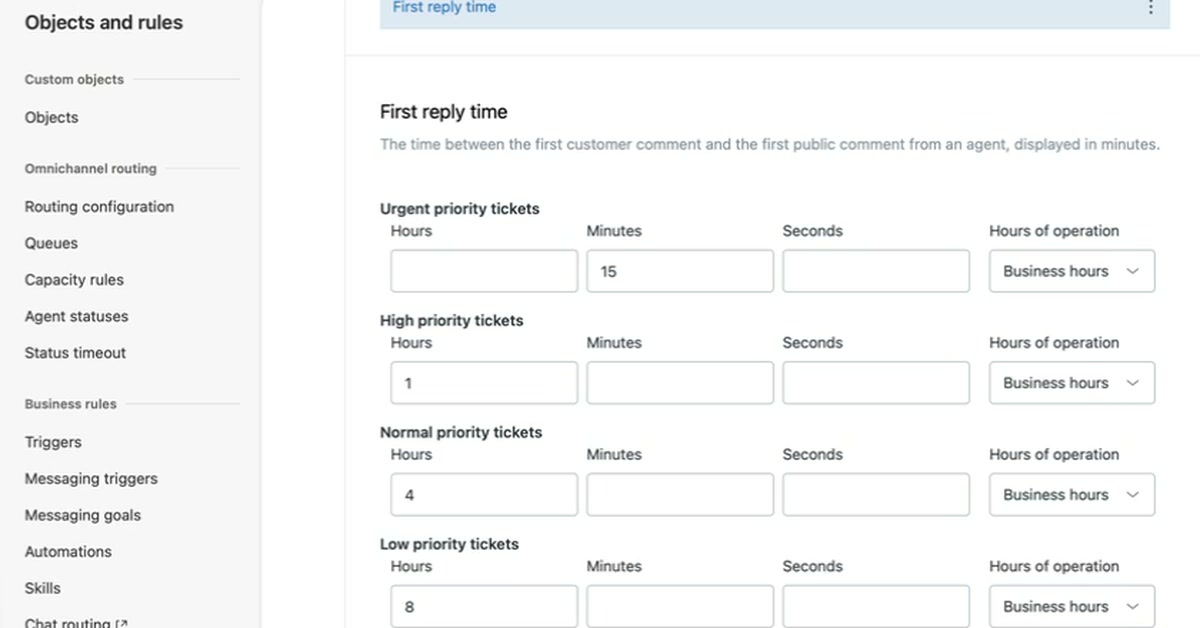
An SLA policy sets how quickly a support team must reply to and resolve tickets. How to create one in Zendesk Admin Center, set first reply time targets by priority in business hours, and confirm the policy applies to a new ticket.
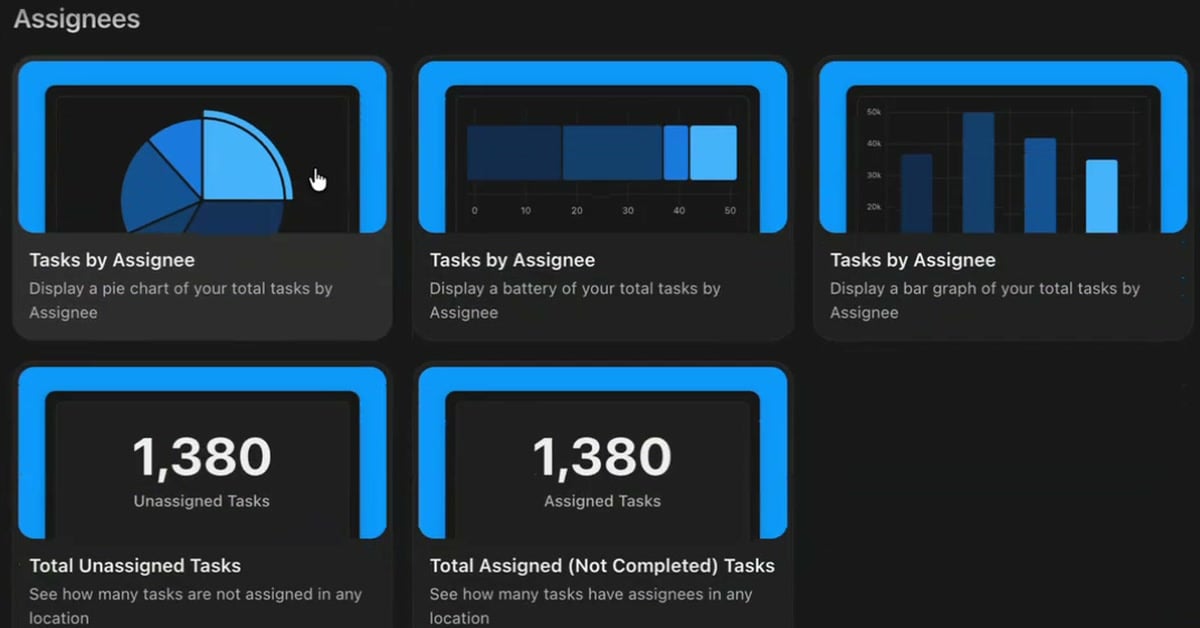
Assignee cards on a ClickUp dashboard show who holds the work and what is still unassigned, with no setup beyond adding the card. How to add them from the card library, switch between chart styles, and narrow a card to one person.
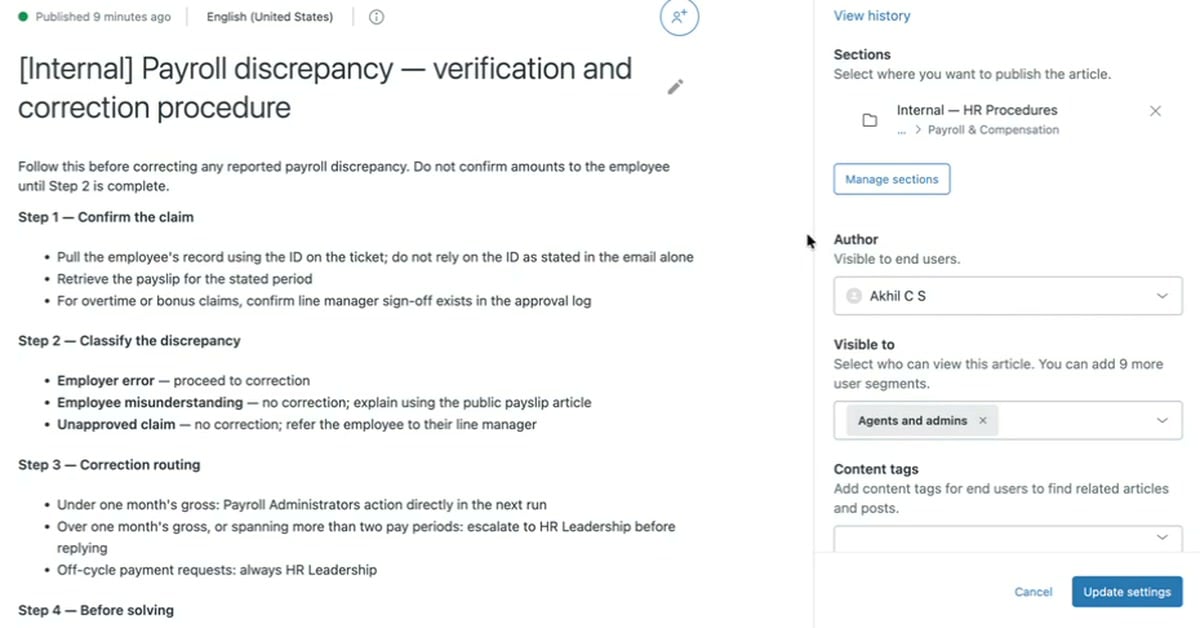
A help desk needs answers customers can read and procedures only agents should see. How an internal article in Zendesk appears in the knowledge panel on a ticket, and the one setting that makes an article internal.
3 min/Oct 2026
Watch
New resources, as soon as they land.
Whitepapers, datasheets, recorded sessions, and field notes on operating AI. Straight to your inbox, the week we publish.