ITSM vs RMM: A Comparison Table for In-House IT Teams
ITSM (IT service management) and RMM (remote monitoring and management) cover two different parts of an in-house IT team...
ReadConnect NinjaOne to Zendesk in six steps, then settle what the setup leaves open: which alerts open tickets, what they carry and who owns each field.
 Divyansh Agrawal
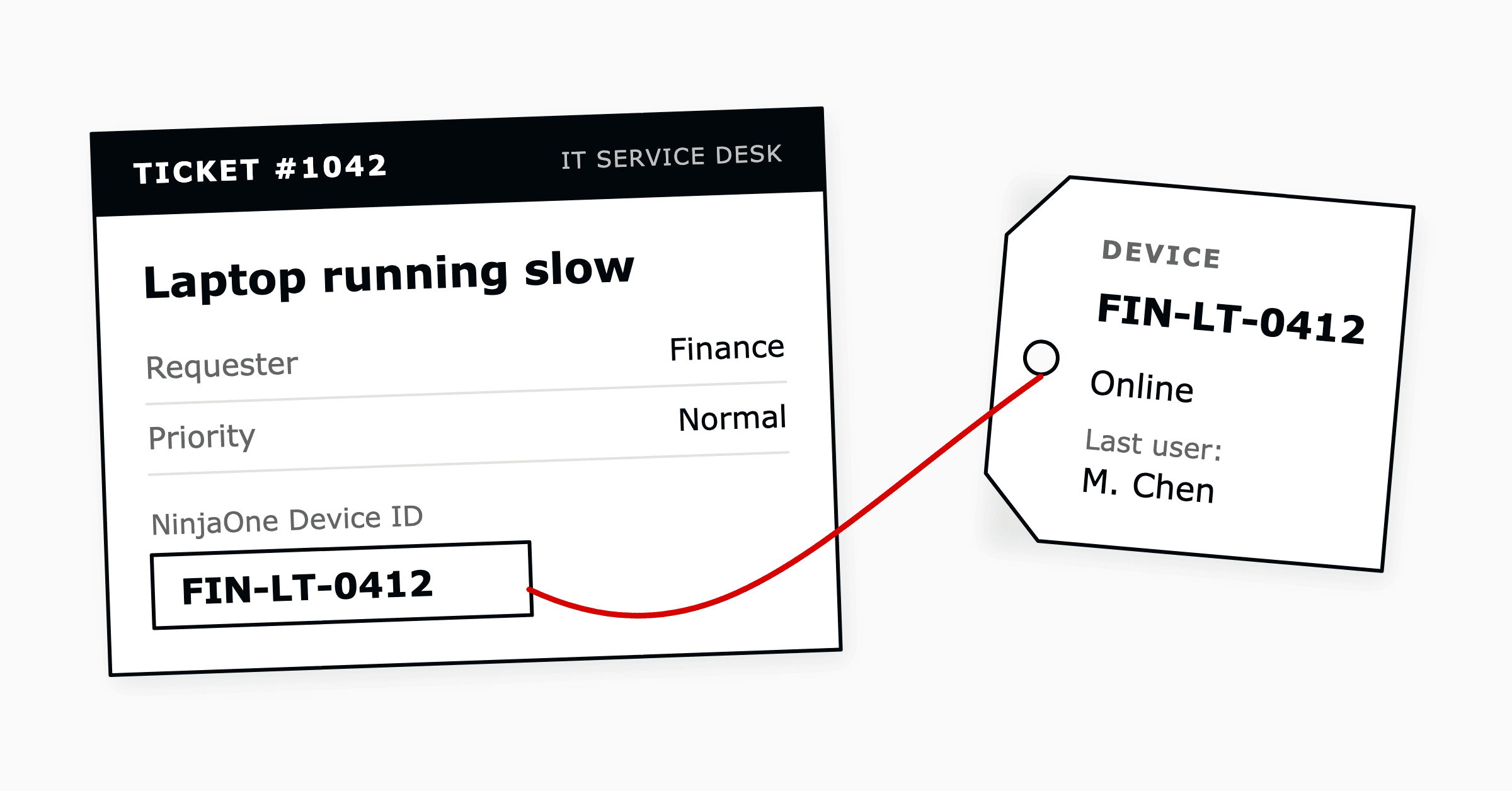
To connect NinjaOne to Zendesk, an administrator enables the Zendesk app in NinjaOne, installs the NinjaOne app from the Zendesk Marketplace, adds the NinjaOne Device ID field to every ticket form, maps organizations and creates ticket templates. That is six steps across the two platforms, and NinjaOne's setup guide covers every screen.
Whether agents can trust the device data that then appears in each ticket depends on decisions the setup screens ask for and leave to you.
Our article on why every hardware ticket starts with 20 questions explains why agents ask employees for details the endpoint platform already holds. This guide is for the IT leader planning the fix. It covers what moves between the platforms, what the setup involves and the decisions to settle before alerts start opening tickets.
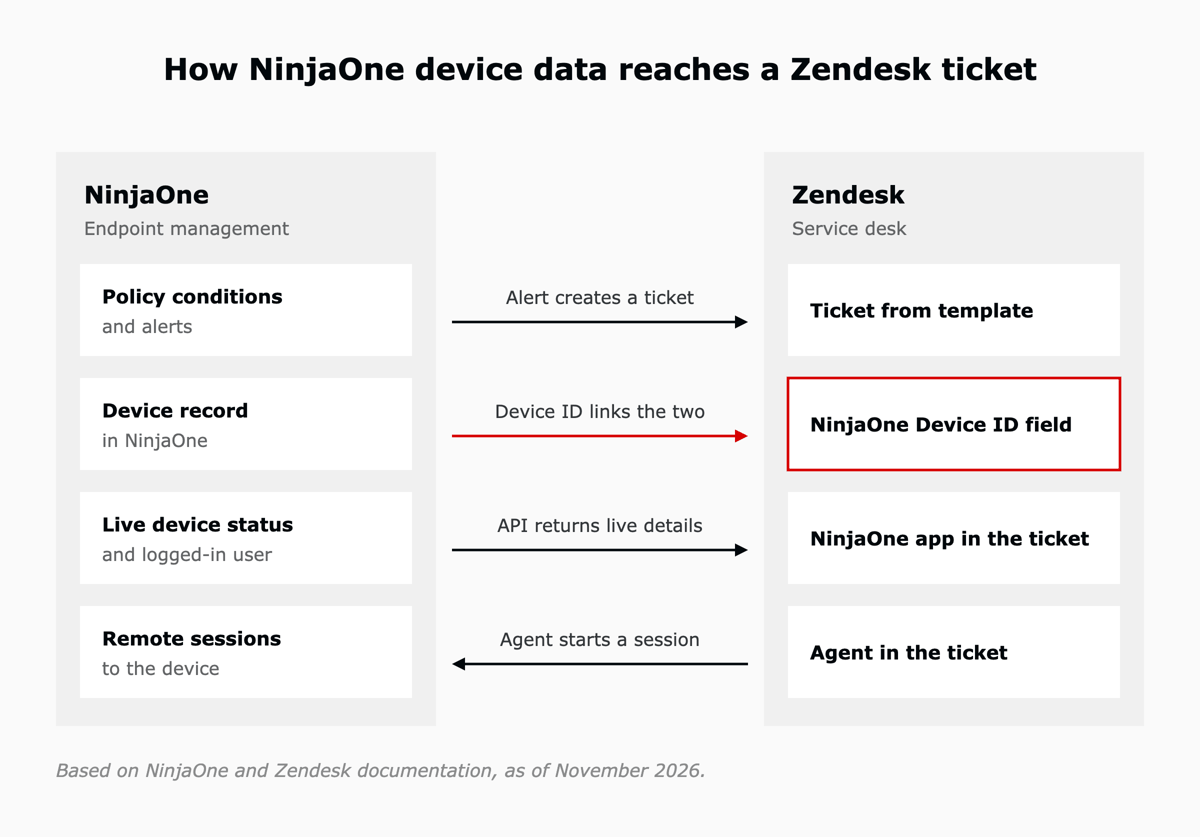
NinjaOne's Zendesk integration, announced on April 8, 2025, connects the endpoint platform to the service desk. NinjaOne alerts create Zendesk tickets from templates, and a NinjaOne Device ID field links each ticket to a device.
The NinjaOne app in the ticket shows the device's live status and the user logged in to it, with a button to start a remote session. Zendesk reads those details from NinjaOne when the agent opens the ticket, so they are current.
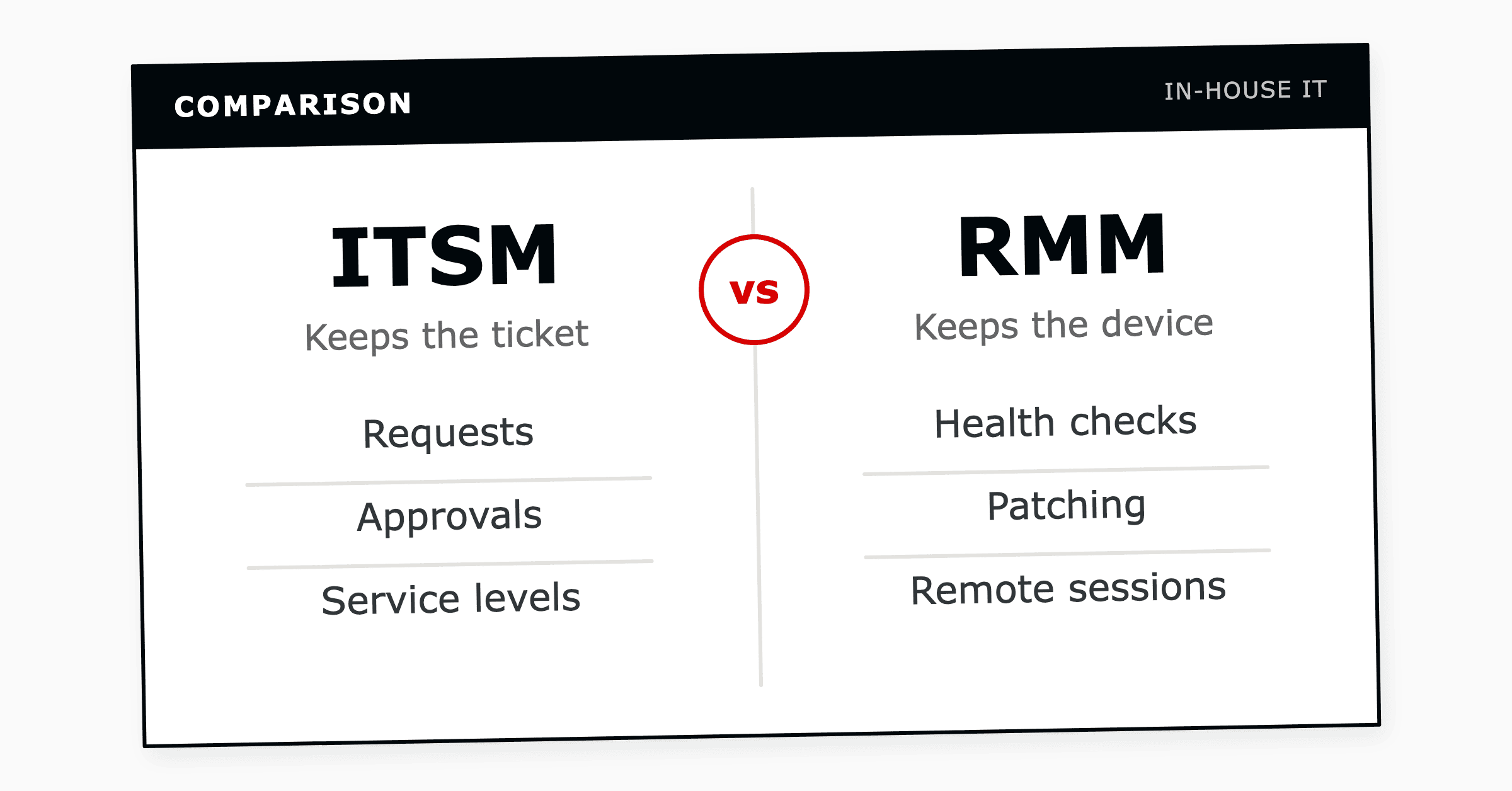
In the terms of our ITSM vs RMM comparison, Zendesk keeps the ticket and NinjaOne keeps the device. The integration lets each one read the other.
You connect NinjaOne to Zendesk in six steps, four in NinjaOne and two in Zendesk, run in order. The Device ID field has to be on the ticket forms before tickets can link to devices, and organizations have to be mapped before NinjaOne creates any tickets.
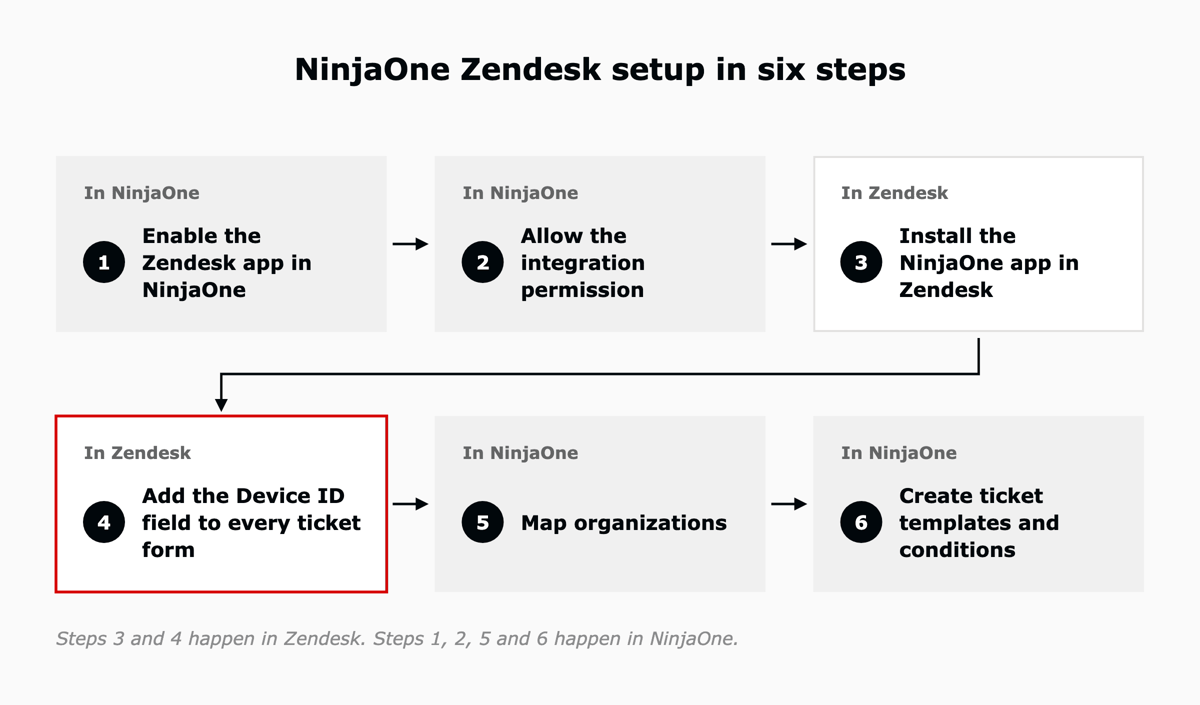
| Step | Where | What it sets up |
|---|---|---|
| 1. Enable the Zendesk app in NinjaOne | NinjaOne | Connects NinjaOne to your Zendesk account |
| 2. Allow the integration permission | NinjaOne | Lets named technicians manage the templates and settings |
| 3. Install the NinjaOne app in Zendesk | Zendesk | Puts device status and remote sessions in the ticket |
| 4. Add the Device ID field to every ticket form | Zendesk | Links each ticket to a device |
| 5. Map organizations | NinjaOne | Sets where each organization's tickets land |
| 6. Create ticket templates and conditions | NinjaOne | Sets which alerts open tickets and what each ticket carries |
You need administrator access in both platforms and a Zendesk plan that supports Marketplace apps: Support Team, Professional and Enterprise, and every Suite plan. Remote sessions also need NinjaOne Remote enabled for each organization.
For the screens and field names, follow NinjaOne's guide to enabling Zendesk and the NinjaOne app listing on the Zendesk Marketplace. Vendor menus change, and their guides change with them.
The six steps connect the platforms. What agents see afterwards, and whether they trust it, comes from seven choices made inside steps 4 to 6, and those choices need revisiting as devices, teams and services change.
| Decision | Where it is set | If it is left open |
|---|---|---|
| Which alerts open a ticket | Policy conditions with a ticketing rule | The queue fills with alerts nobody acts on |
| What an alert ticket carries | Ticket template: status, type, priority, group, tags | Alert tickets skip the routing and service levels other tickets get |
| When a ticket updates or closes on its own | Condition retrigger, Condition reset, Callback | Repeat alerts open duplicates, or tickets close before anyone checks the fix |
| Where each organization's tickets land | Organization mapping | Alert tickets arrive with "Ninja Alerts" as the requester |
| Which forms carry the Device ID field | Zendesk ticket forms | Tickets raised on other forms arrive with no device attached |
| Which system owns each device field | NinjaOne device record, Zendesk asset record | Two systems overwrite each other's data |
| Who can start a remote session | NinjaOne Remote, per organization | Agents can see the device but cannot reach it |
In NinjaOne, a ticket starts with a policy condition that has a ticketing rule. Every condition given a rule can open tickets, so the first decision is which ones deserve an agent's time.
Teams usually start with a short list, such as low disk space, a failed backup or a server that stops responding, and add more once the first set is stable.
NinjaOne's condition documentation also sets a limit: after 10 open tickets for the same condition and device, it stops creating tickets and adds a private message to the most recent one.
The ticket template sets the status, type, priority, group and tags each alert ticket arrives with. These decide where the ticket routes and which service level applies, so they should follow the same rules as tickets raised by people.
Two details matter early: once a type is set it cannot be cleared back to blank, and On-hold has to be turned on in Zendesk before a template can use it.
Three template settings control what happens after the ticket opens. Condition retrigger adds an alert that reopens within a set period to the same open ticket, and Condition reset moves the ticket to a status you choose when the alert clears.
Callback decides whether solving the ticket in Zendesk resets the alert in NinjaOne. The choice to settle is whether a cleared alert closes the ticket on its own or waits for a technician to confirm the fix.
Organization mapping pairs each NinjaOne organization with a Zendesk organization and, optionally, a default contact. Without a contact, the requester on alert tickets shows as "Ninja Alerts", which affects notifications and reporting. Mapping is also where ticket creation is switched on, one organization at a time, so it is a natural place to start small.
Tickets link to devices through the NinjaOne Device ID field, and a ticket raised on a form without that field arrives with no device attached. On Zendesk plans with multiple ticket forms, which means Suite Growth and above and Support Enterprise, every form employees use for hardware problems needs the field.
Fields the integration uses should not be set to "Required to solve a ticket", because NinjaOne cannot validate them through the Zendesk API and those tickets will not resolve.
NinjaOne holds the live state of the device: operating system, patches, disk, memory and alerts. Zendesk IT asset management, generally available since May 11, 2026, holds assignment, location and warranty.
Give each field one owner and let the other system read it, the approach behind running endpoint management and the service desk as one system. When two systems own the same field, one overwrites the other.
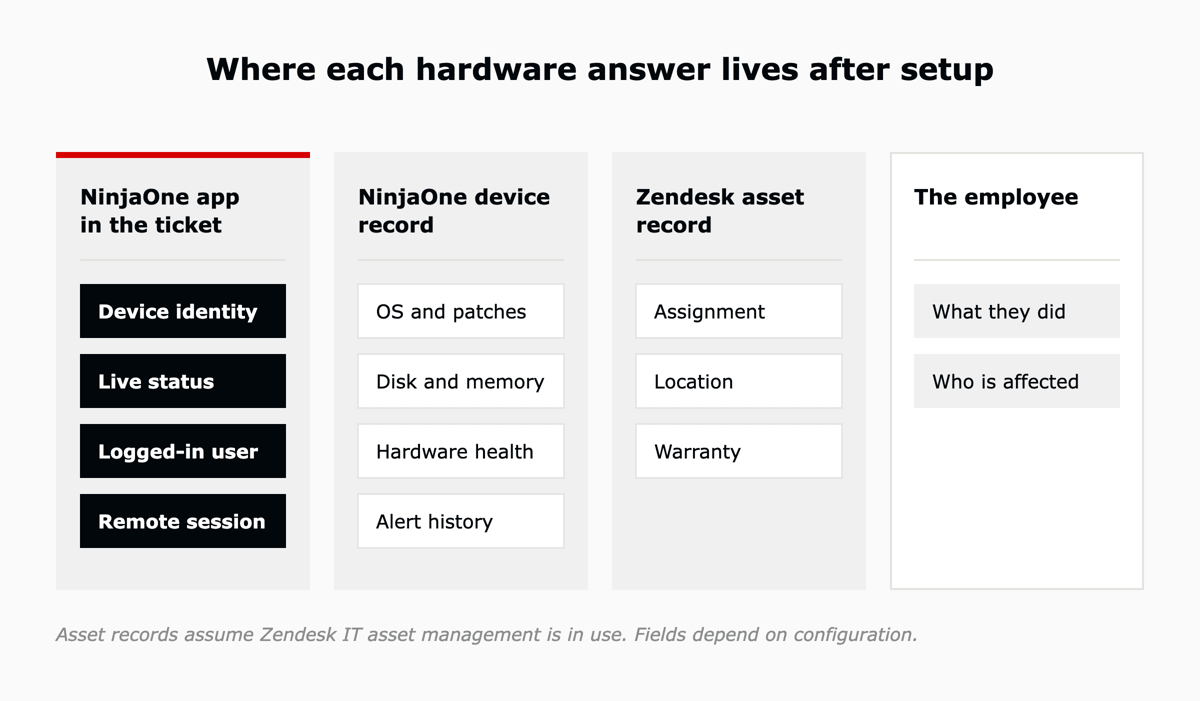
The Launch NinjaOne Remote button in the ticket works only when NinjaOne Remote is enabled for the device's organization, the device type is supported and the device is online. Which organizations get remote access from the service desk is a security decision as well as a support one, so it belongs with whoever owns access policy.
Install the NinjaOne app from the Zendesk Marketplace and add the NinjaOne Device ID field to the ticket forms. Once a device is linked, the app shows its live status and the user logged in to it, with a button to start a remote session.
Enable the Zendesk app in NinjaOne and allow the integration permission, install the NinjaOne app from the Zendesk Marketplace, add the NinjaOne Device ID field to your ticket forms, then map organizations and create ticket templates in NinjaOne. NinjaOne's setup guide lists the screens for each step.
Zendesk Marketplace apps are available on Support Team, Professional and Enterprise and on all Suite plans. Multiple ticket forms, where each form needs the Device ID field, are available on Suite Growth and above and on Support Enterprise.
Yes, when the ticket template's Callback setting is configured for it. Callback decides what happens to the NinjaOne alert when its ticket is resolved in Zendesk.
A field the integration uses is probably set to "Required to solve a ticket" in Zendesk. NinjaOne cannot validate that data through the Zendesk API, so turn the setting off for fields the integration uses.
NinjaOne supplies the device telemetry and Zendesk runs the ticket, and the two connect through NinjaOne's Zendesk integration. L5 is a Zendesk Preferred Partner and a NinjaOne partner, and offers Zendesk and NinjaOne as one operated bundle on AWS Marketplace.
In the bundle, L5 configures the integration, including the device details agents see in the ticket, and as the operator keeps tuning the automation and the data flows between the two platforms after go-live.
The first step is finding out which of these decisions your setup has already made and which it left at the default. Book an assessment and you walk away with a scorecard, a roadmap and a business case, in one week against a fixed scope.

The full article with its figures, tables and sources, set for reading offline, printing, and sharing.
On its way to your inbox You can also download it right now.
Download the PDF Last updatedKeep reading
ITSM (IT service management) and RMM (remote monitoring and management) cover two different parts of an in-house IT team...
Read
In ITSM, endpoint management is how an IT team keeps a record of the devices that connect to the business, keeps them up...
Read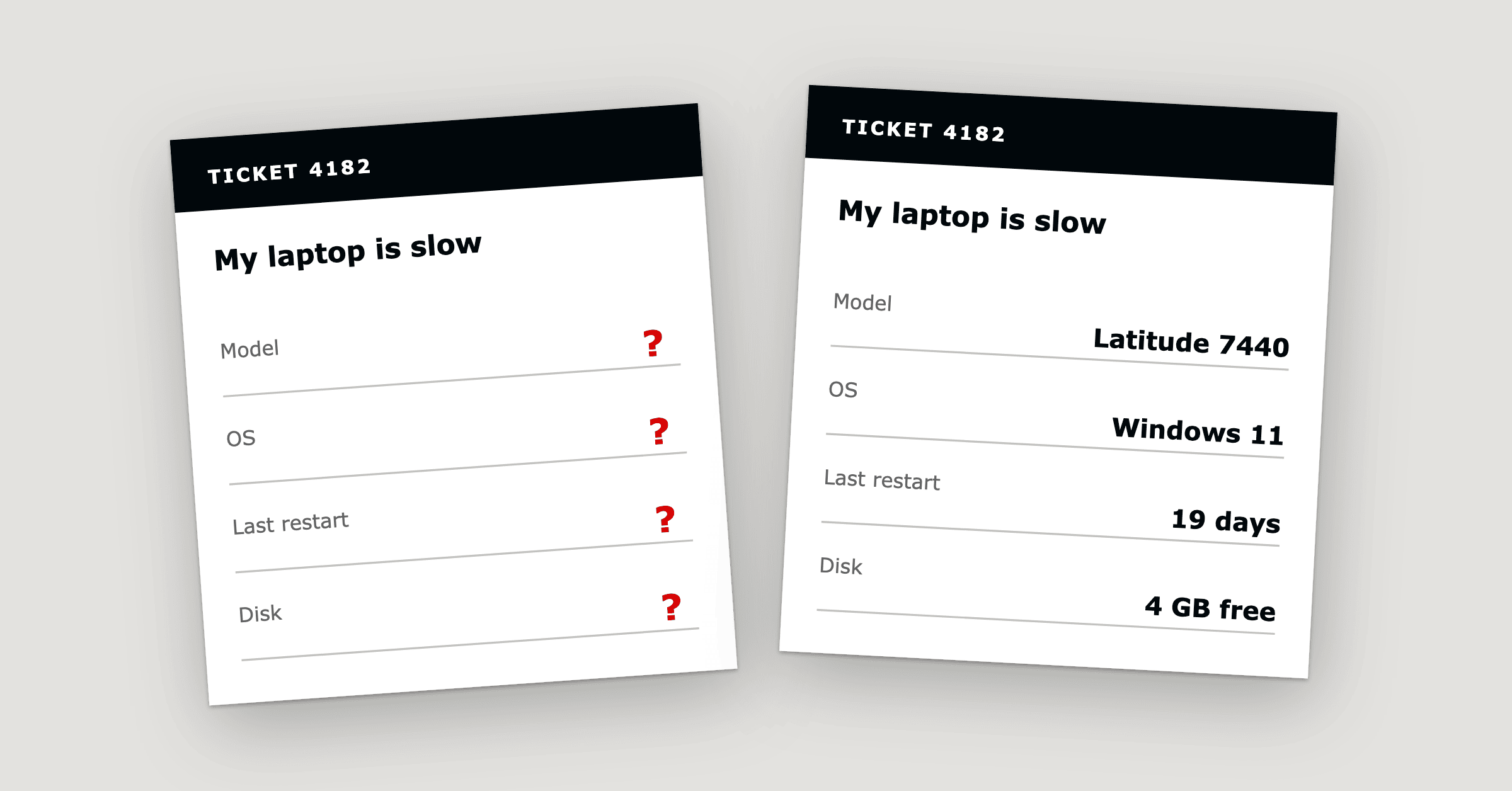
Hardware ticket troubleshooting starts with 20 questions because the details a technician needs, such as the serial numb...
ReadField notes on AI operations and service management, direct to your inbox. New insights, the week we publish them.
No spam. Unsubscribe any time.