ClickUp Review 2026: Features, Pros, and Cons
ClickUp is an all-in-one project and work management platform that combines task tracking, docs, chat, whiteboards, time...
ReadBuild a repeatable new hire onboarding workflow in ClickUp: templates, intake forms, custom fields, automations, and a phased 30-60-90 checklist.
 L5 Team
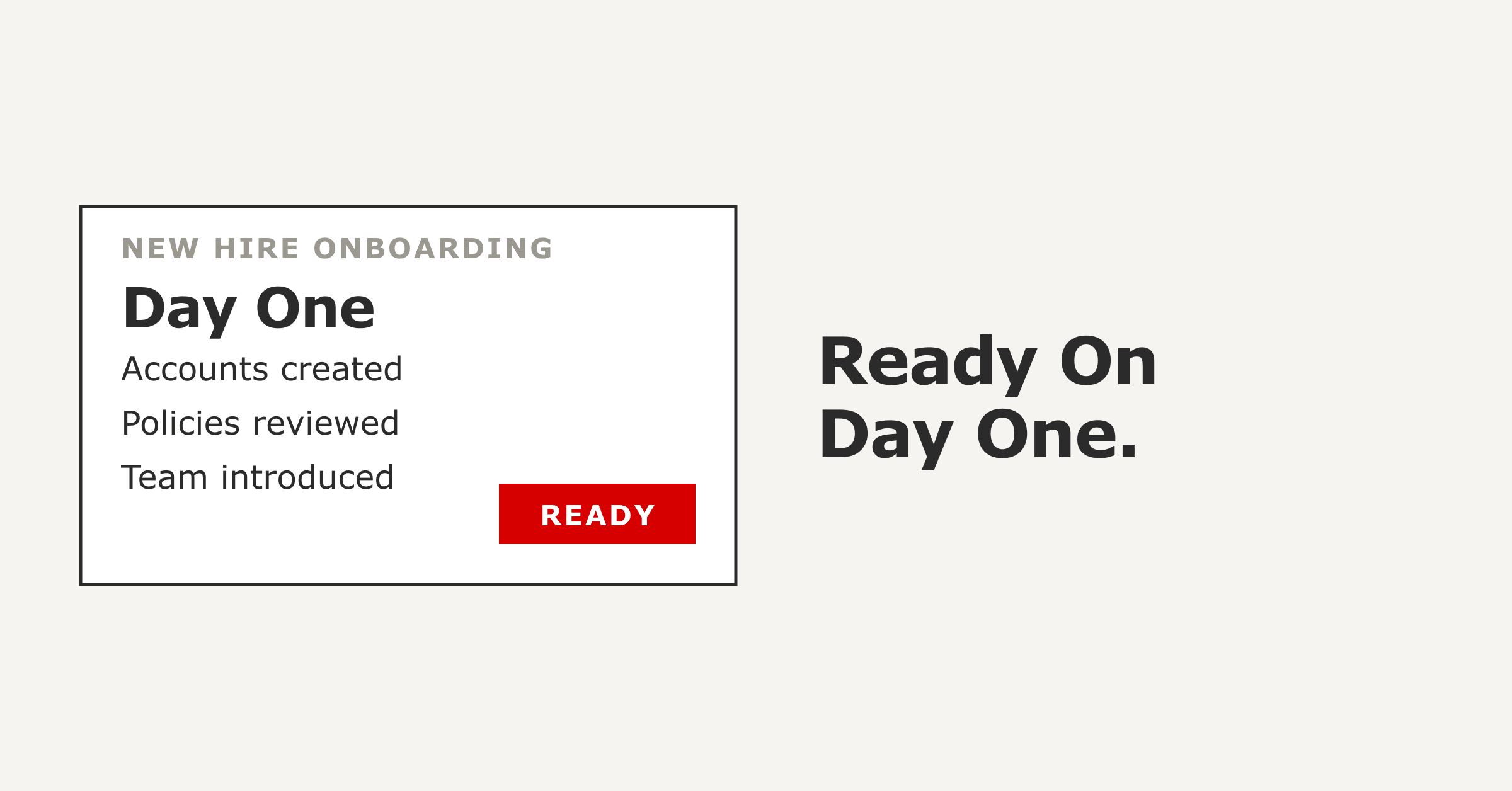
New hire onboarding in ClickUp means running the whole process, paperwork, account setup, training, and introductions, as tracked tasks inside one workspace. A manager starts from an onboarding template or a saved list, ClickUp assigns each task with an owner and a due date, and HR, IT, and the hiring manager all watch progress in real time. The result is that every hire gets the same complete start, and nothing depends on one person remembering the steps.
This guide walks through the full build: the workspace structure, an intake form that creates tasks on submission, the custom fields and automations that do the routing, a phased checklist from before day one through the first 90 days, the free templates worth starting from, and the mistakes that quietly slow onboarding down.
The Short Version
Run new hire onboarding in ClickUp as one repeatable workflow, not a manual checklist that lives in someone's head.
- Build the process once as a template, then apply it to every hire.
- A Form captures the details, custom fields drive the routing, and Automations assign the work.
- Sequence tasks in four phases: before day one, day one, week one, and the first 90 days.
Done well, structured onboarding raises new hire retention by 82% and productivity by over 70%, per Brandon Hall Group.
Onboarding is where retention and productivity are won or lost, and most companies leave the outcome to chance. Only 12% of employees strongly agree their organization does a good job onboarding new people, according to Gallup. The gap is rarely effort. It is structure.
The payoff for closing that gap is measured and consistent across the research:
A shared workspace is what turns those findings into a repeatable process. ClickUp gives HR one place to define the steps, assign the owners, set the dates, and see where every hire stands, so the quality of someone's first month does not ride on which manager they got.
Sources: Gallup and Brandon Hall Group onboarding research, and SHRM. Figures cited as published by each organization.Seven steps take you from an empty workspace to a system that runs itself. Do them once and every future hire inherits the setup.
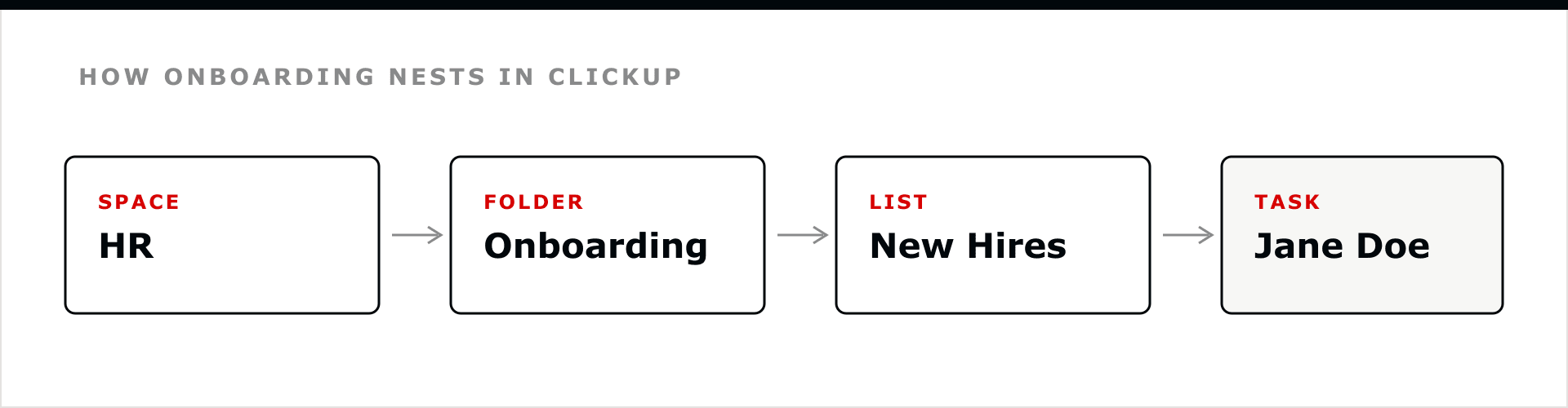
ClickUp organizes work as Space, then Folder, then List, then Task. For onboarding, an HR Space holds an Onboarding Folder, which holds a List per hire or a single List with one task group per hire. Each new employee becomes a set of tasks under that List.
If you would rather not build this from scratch, start from one of ClickUp's free onboarding templates and rename the Space and Folder to match your team.
A ClickUp Form is the front door. Build a short intake form that a recruiter or hiring manager fills out once the offer is signed: name, role, department, manager, start date, location, and equipment needs. Each submission creates a task in your onboarding List with those answers already attached, so no one re-types the same details into three systems.
Custom fields hold the facts the rest of the workflow reacts to. The ones that earn their place for onboarding are role, department, start date, assigned manager, work location, and equipment status. Later steps use these fields to route tasks and calculate due dates, so a hire in Engineering and a hire in Sales can share one List and still get the right checklist.
Group the tasks by phase rather than one long flat list. Use custom statuses (for example: To Do, In Progress, Blocked, Complete) so anyone can see state at a glance, and use views to slice the same tasks different ways. A List view works for HR, a Calendar view maps due dates to the start date, and a Board view gives the new hire a simple lane to work through. The four phases are covered in the onboarding timeline below.
Automations remove the manual chasing. A rule can assign every IT task to the IT owner the moment a hire is added, set due dates relative to the start date, move a task to In Progress when work begins, and notify the manager when a phase completes. Recurring tasks handle the check-ins that repeat, such as the 30, 60, and 90-day reviews. For teams on the AI add-on, ClickUp Brain can draft welcome messages, summarize a hire's progress, and help generate role-specific task lists.
Onboarding fails at the handoffs, so keep every team in the same List. Tag the IT owner on account and equipment tasks, the manager on role training, and HR on paperwork and benefits. Assigned comments turn a question into an owned action item instead of a lost message. Because all of it lives on one hire's tasks, nobody has to ask where things stand.
A Dashboard gives HR a live view across every active hire: tasks complete, tasks overdue, and who is blocked. Start each new hire with access to only their own onboarding List and the docs they need on day one, then widen their access to more Spaces as they ramp. This keeps the workspace uncluttered for them and protects the rest of your data while they get up to speed.
The shortcut most teams miss
Once this is built, save the whole structure as a template. Adding a new hire then becomes one action: apply the template, set the start date, and every task, owner, and due date populates itself.
A good checklist is sequenced, not just complete. Grouping tasks into four phases keeps the first week calm and spreads the rest across the runway where it belongs.
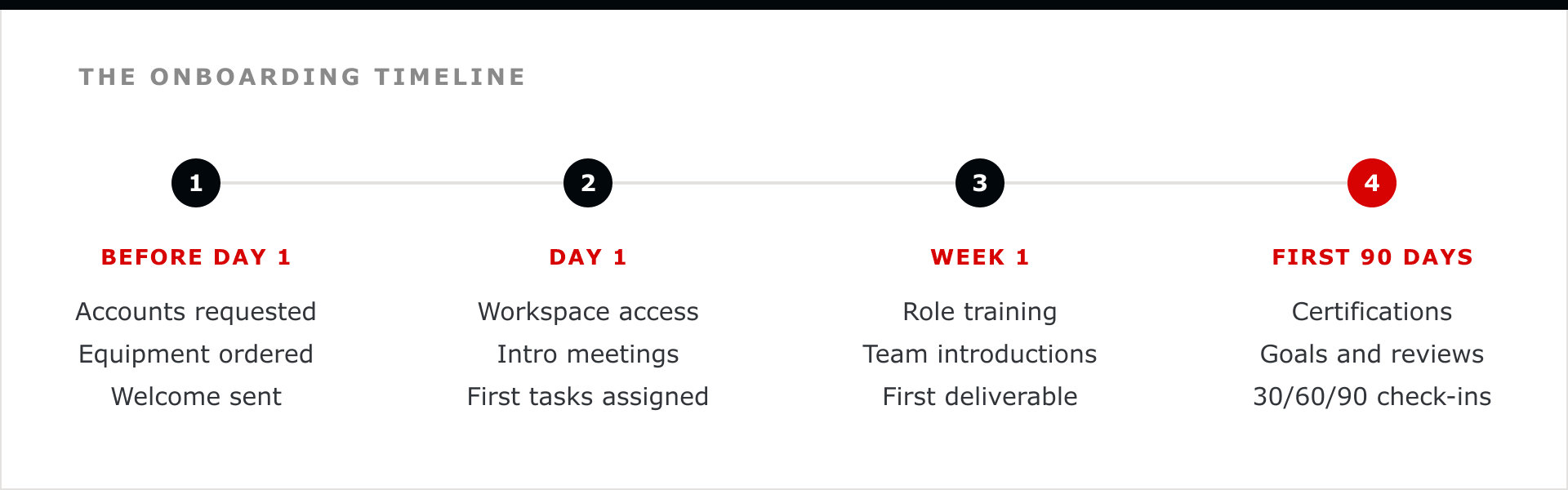
Here is the same sequence as a working checklist, with the owner who is usually accountable for each phase.
| Phase | Core tasks | Usual owner |
|---|---|---|
| Before day 1 | Sign paperwork, request email and software accounts, order equipment, assign a buddy, send a welcome note and first-day logistics | HR + IT |
| Day 1 | Grant workspace access, complete setup, run intro meetings, review the role and expectations, assign the first small tasks | Manager + HR |
| Week 1 | Role and tools training, team introductions, review policies and procedures, ship a first low-stakes deliverable | Manager |
| First 90 days | Complete technical certifications, set goals, gather feedback, run 30, 60, and 90-day check-ins | Manager + HR |
If you are deciding what to actually use, this is the short version. Each onboarding job maps to a native ClickUp feature.
| Onboarding job | ClickUp feature |
|---|---|
| Collect new hire details once | Forms (each submission becomes a task) |
| Hold role, department, start date, equipment | Custom fields |
| Show task state at a glance | Custom statuses |
| See the plan by list, calendar, or board | Views (List, Calendar, Board, Gantt) |
| Assign owners and route work automatically | Automations |
| Repeat the 30, 60, and 90-day check-ins | Recurring tasks |
| Draft messages and summarize progress | ClickUp Brain (AI add-on) |
| Track every active hire in one place | Dashboards |
| Turn a question into an owned action | Assigned comments |
You do not have to build the structure yourself. ClickUp publishes several free onboarding templates you can copy into your workspace and adapt. These are the ones most teams start with.
| Template | Best for |
|---|---|
| Employee Onboarding | A full folder with statuses, a getting-started guide, an onboarding calendar, and a new-hires table |
| New Hire Onboarding | A lighter checklist covering the first day, first week, and first 90 days |
| Onboarding Checklist | Custom fields for job title, work email, department, and start date, with List, Gantt, and Calendar views |
| IT New Hire Form | Collecting access and equipment needs for a new employee before day one |
Templates are a fast start, but they are generic by design. The value comes from adapting one to your real roles, owners, and tools, then saving that version. For more on building your own, see our guide to getting the most from ClickUp templates.
The workflow above avoids the failures we see most often when teams run onboarding in ClickUp.
L5 is a top ClickUp partner, and we run our own new hire onboarding and technical certifications inside ClickUp. Every new team member gets the same template: accounts and equipment handled before day one, a phased checklist with owners, and certification tasks tracked to a due date. Running it ourselves is why our recommendations to customers are practical rather than theoretical.
For the HR and operations teams we work with, mostly growing companies on ClickUp, we build the onboarding workspace, wire the forms and automations, and operate it after go-live so the process stays consistent as headcount grows. The system does not decay the month after it is set up.
Create an onboarding List (or copy a template), collect the hire's details with a Form, hold the key facts in custom fields, break the tasks into phases with statuses and due dates, and use Automations to assign owners and reminders. A Dashboard then tracks every active hire in one place.
Yes. ClickUp publishes several free templates, including Employee Onboarding, New Hire Onboarding, an Onboarding Checklist, and an IT New Hire Form. You can copy any of them into your workspace and adapt them to your roles and tools.
Yes. Automations can assign tasks to the right owner, set due dates relative to the start date, change statuses, and send notifications. Recurring tasks handle repeating check-ins, and ClickUp Brain, the AI add-on, can draft messages and summarize a hire's progress.
Use a ClickUp Form. Build a short intake form for name, role, department, manager, start date, and equipment needs. Each submission creates a task in your onboarding List with the answers attached, so the details are captured once.
Group tasks into four phases: before day one (paperwork, accounts, equipment, welcome), day one (access, intros, first tasks), week one (training, team introductions, a first deliverable), and the first 90 days (certifications, goals, and 30, 60, and 90-day check-ins).
Plan for the first 90 days, not the first week. Research from SHRM shows new hires reach full productivity faster with a structured program, and the 30, 60, and 90-day check-ins are where you confirm the hire is on track.
Not unless you grant it. Start a new hire with access to only their onboarding List and the day-one docs, then widen access to more Spaces as they ramp. Guest and member permissions control exactly what each person sees.
Yes. ClickUp suits HR and small-to-mid-sized teams that want one workspace for the whole process, with Forms, custom fields, automations, and Dashboards on the paid plans. For cost details, see our ClickUp pricing guide.
A repeatable onboarding process is mostly a setup problem. Build the template once, wire the form and the automations, and the workflow carries every future hire. If you would rather have it built and kept running, that is what L5 does.


The full article with its figures, tables and sources, set for reading offline, printing, and sharing.
On its way to your inbox You can also download it right now.
Download the PDF Last updatedKeep reading
ClickUp is an all-in-one project and work management platform that combines task tracking, docs, chat, whiteboards, time...
Read
Last verified July 2026. Should you choose Jira or ClickUp? Choose Jira if your team ships software and works in sprints...
Read
ClickUp is a productivity tool. L5 can configure ClickUp to suit the specific needs of various industries, including law...
ReadField notes on AI operations and service management, direct to your inbox. New insights, the week we publish them.
No spam. Unsubscribe any time.